


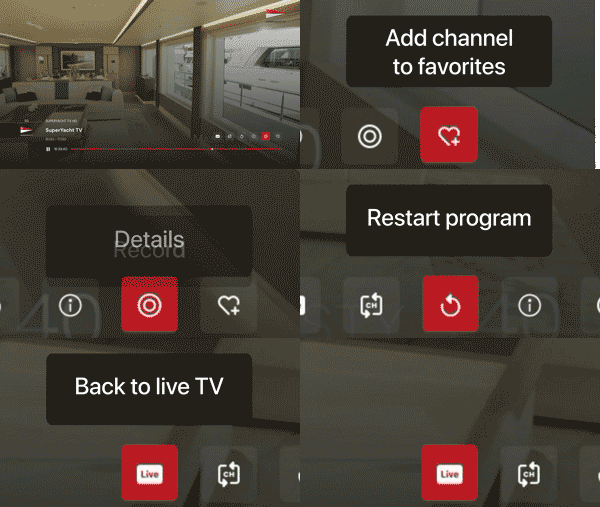
After the initial setup, and every time you turn on your Apple TV, it will start directly in TV mode on the last channel you were watching.
User guide:
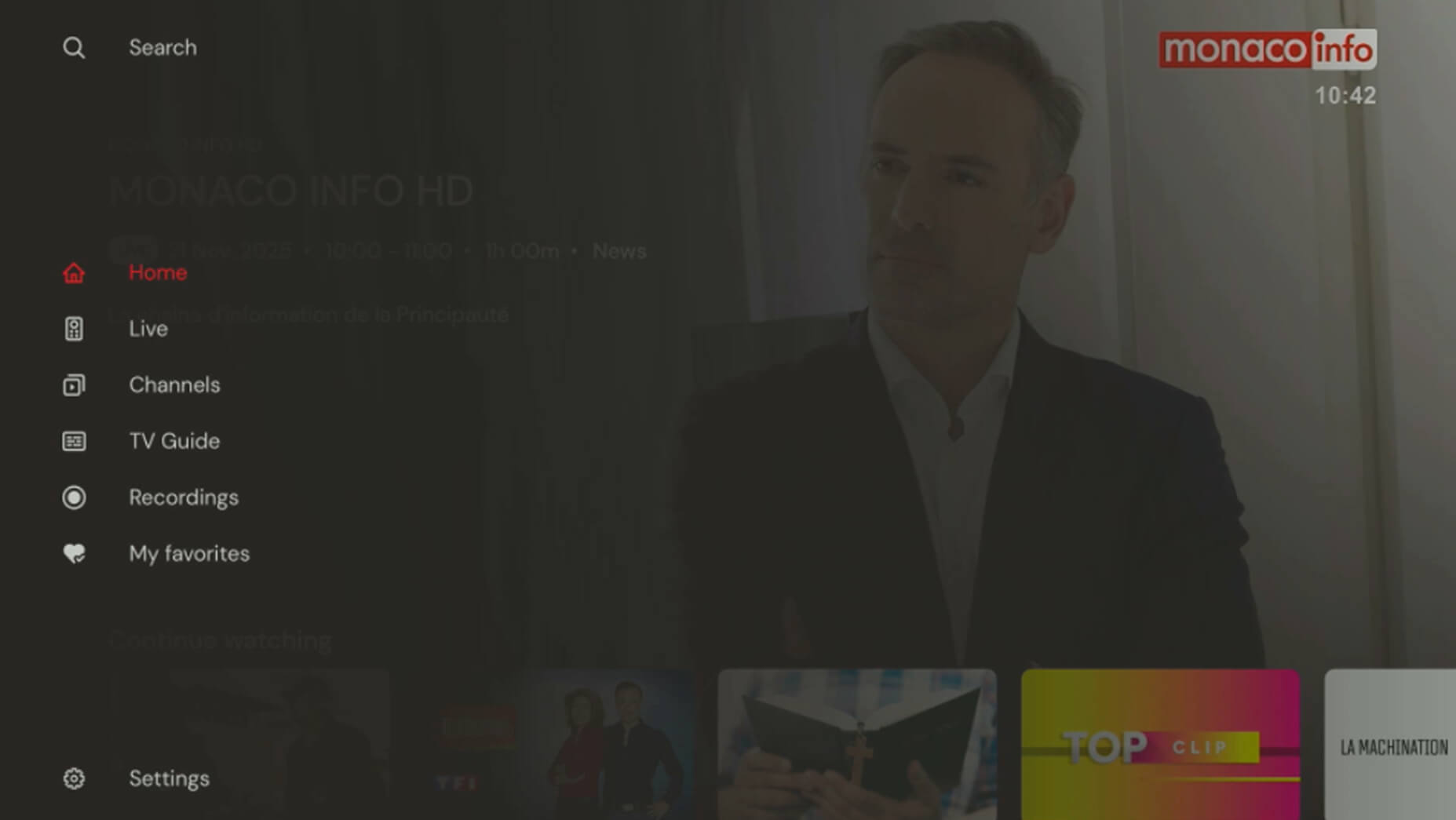
Search: Search for a channel or TV program by entering the program or channel name using the on-screen keyboard or with Siri (if the feature is enabled).
Home: Display all available content.
Replay: Access replay programs up to 7 days after their initial broadcast.
Live: Watch live TV channels.
• Swipe up or down to change channels.
• Swipe right to display a vertical channel grid with the channel list.
• Swipe left to display the mini EPG with the list of past, current, and upcoming programs.
• Press the center button on the directional pad during playback to display the control bar at the bottom of the screen. From there, you can pause live TV, rewind, record the program, change the audio channel, or add subtitles if available.
Channels : Select the desired channel. Channels are organized by category.
TV Guide: View past or upcoming TV schedules. TV programs can be selected to watch in replay (depending on broadcaster rights).
Recordings: Watch or delete your recordings.
Favorites : Manage your favorite channels and programs.
Settings: Manage your audio and video settings, as well as log out of your account.
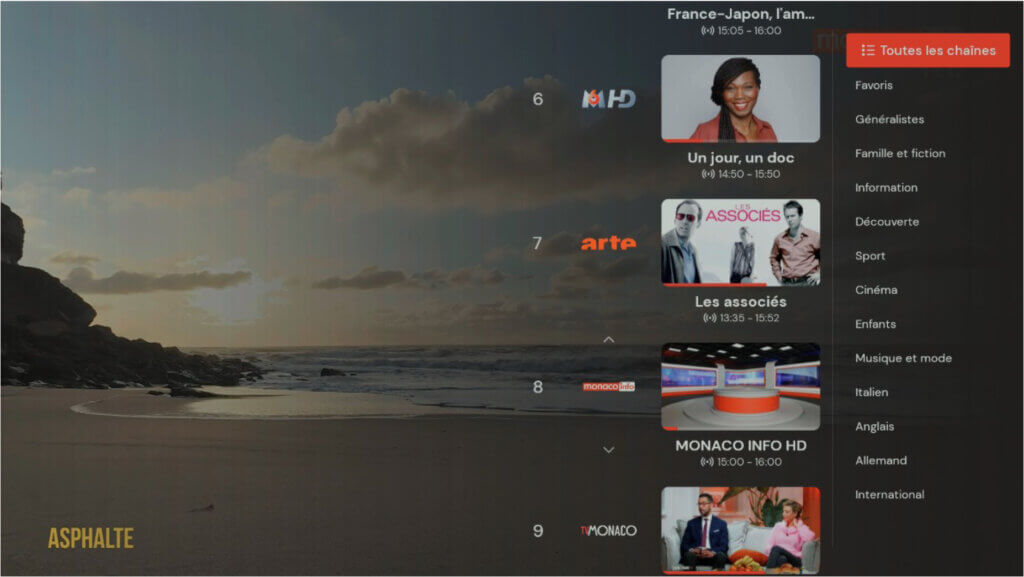
Under “Live”, all available channels and the programs currently airing are listed in a vertical column on the right side of the screen. Next to the channel logos, the current programs are displayed.
Using the navigation buttons, you can browse through the channel list and select the next one. Confirm your selection and change channels by pressing the OK button.
See “ Channel switching ”
You can also limit the channel list to your favorite channels.
To do this, press the right button “ → ” on the navigation pad of your remote control while watching TV. You can choose to display all channels, a channel category, or only your favorite channels.
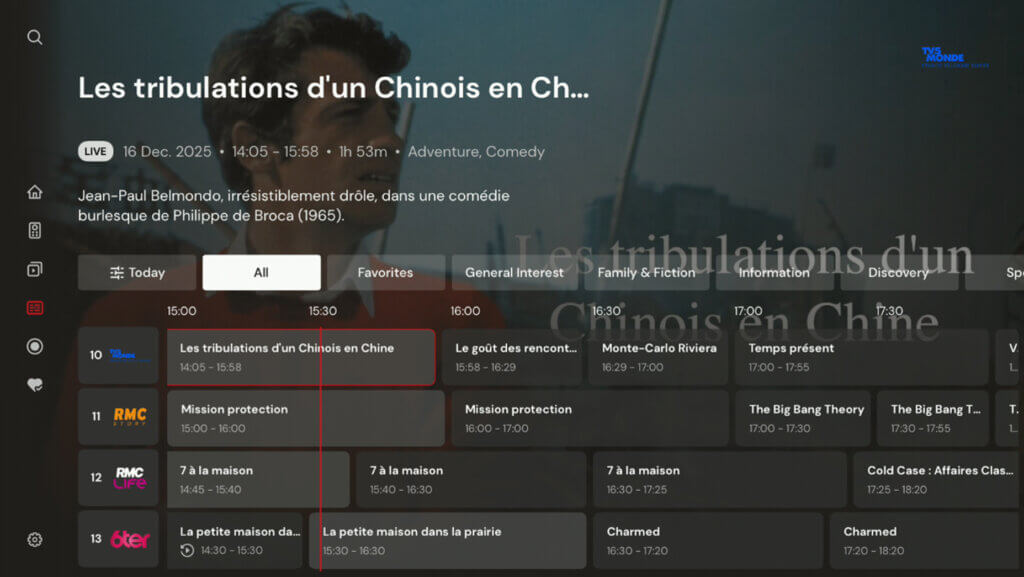
You can open the TV Guide via the main menu.
It lists all available channels and displays the available programming along a timeline.
In the TV Guide, you can access the desired channel and start watching its program. In addition, each program is accompanied by a brief description.
The guide displays past, current, and upcoming programs, including titles, start times, and durations.
Programs are displayed on a time scale in 30-minute increments, with the colored line indicating the current time.
The channel list and favorites are represented by the channel number and logo.
You can switch the TV Guide view between “All”, “Favorites”, or choose from the channel categories.
You can use the direct number entry keys on your remote control to directly access the program of a channel you are interested in.
The program details page includes the channel name, the program title and, if applicable, the episode title, as well as the date and the program’s start and end times.
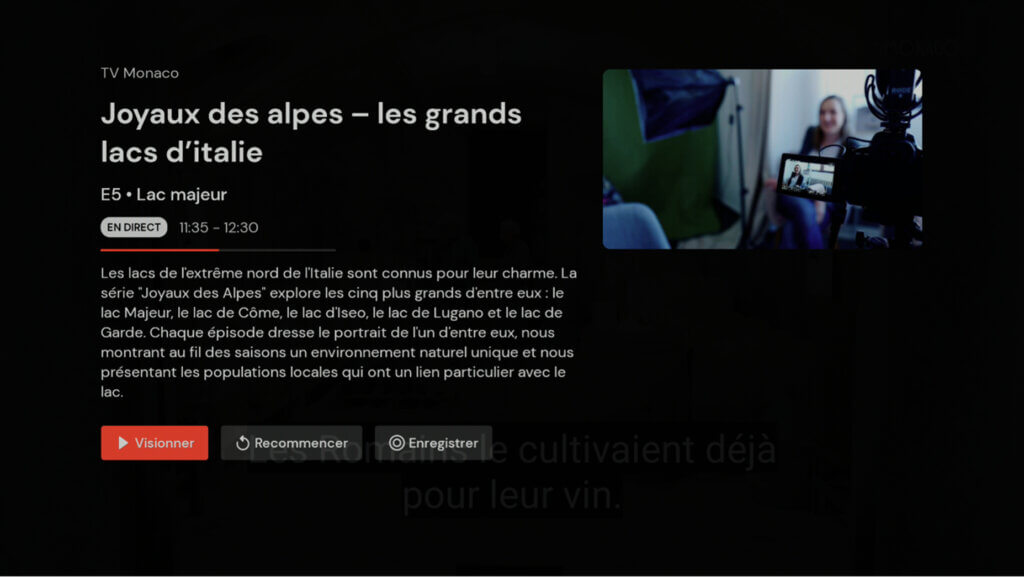
The program details page includes the channel name, the program title and, if applicable, the episode title, as well as the date and the program’s start and end times.
In addition, detailed information about the program is provided, such as the year of production, country, duration, and content.
Some programs may include additional information, such as cast and director details, hidden under the Details button.
In the program information view, you can also:
- Watch: Watch programs by pressing the
 play button.
 - Restart: If available, watch programs from the beginning using

- Record: Record programs by clicking the
 button.

Once you have selected a program, playback starts. Various control options are available during playback. From the left, the player displays the channel logo with its number.
In addition, the channel name, the title of the program/movie currently playing, and its duration are displayed.
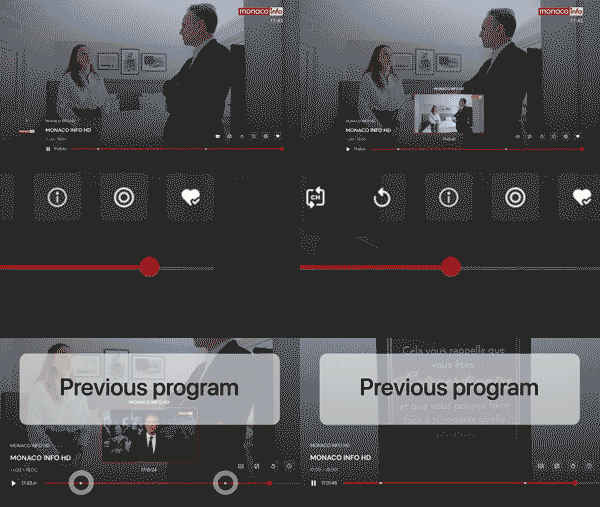
Below, a progress bar allows you to rewind. White dots indicate the start of a program and allow you to jump back to specific moments in the content. On the right side of the player are buttons that allow you to customize the program/movie currently playing.
Buttons:
1 : Exit time-shift mode and return to live broadcast
2 : Return to the previous channel
3 : Watch a program from the beginning (replay/restart)
4 : Program details
5 : Select language and subtitles
6 : Schedule or cancel the recording of a program or movie
7 : Add a channel to favorites
There are several ways to change channels:
Use the “↑” or “↓” buttons on your remote control to navigate between channels.
Swipe right on the navigation button to display the channel list over the currently playing program. Next to the channel logos, the programs currently airing are displayed. You can then choose a new channel using the up/down directions on the navigation button and select the desired channel using the center button.
See “ Vertical channel list ”
All available channels and the programs currently airing are listed in a vertical list on the right side of the screen. Current programs are displayed next to the channel logos.
To display the “Channel list” as an overlay, swipe the right button “ → ” on the directional pad of your remote control while watching TV. To close it, press the Back button on the remote control. Note: the player bar must be hidden for this to work.
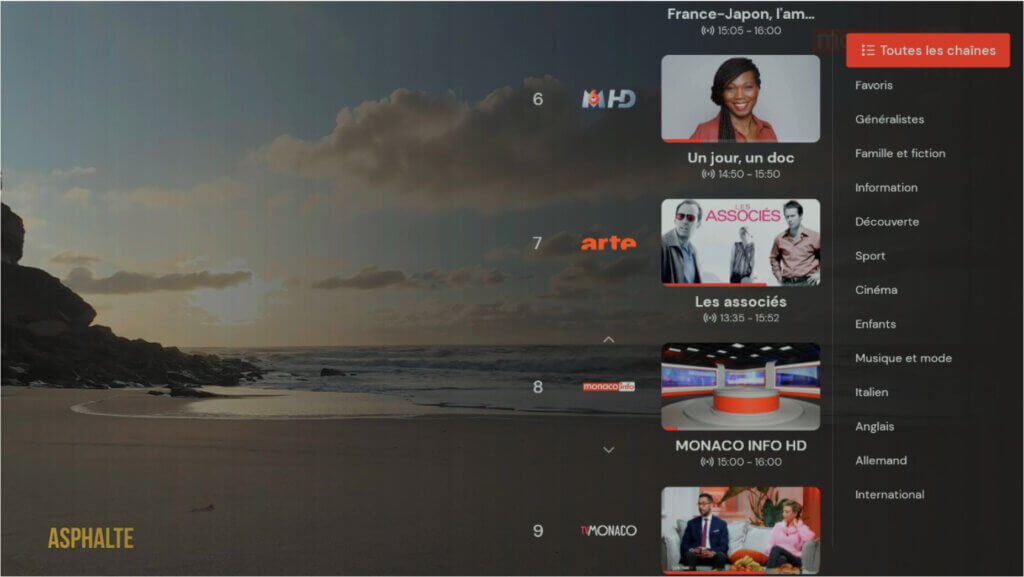
To confirm your selection and watch a program currently airing on another channel, press the “OK” button on the directional pad of your remote control.
You can also limit the channel list to your favorite channels.
To do this, swipe right “ → ” when the vertical channel list is open. You can choose to display all channels, a channel category, or only your favorite channels.
See “ Create a favorite channel list ”
It allows you to quickly browse channels, programs currently airing on specific channels, as well as past and upcoming programs. All of this without leaving the player, while continuing to watch your favorite show.
To display the “Mini program guide” as an overlay, swipe the left button “ ← ” on the directional pad of your remote control while watching TV. To close it, press the Back button on the remote control. Note: the player bar must be hidden for this to work.
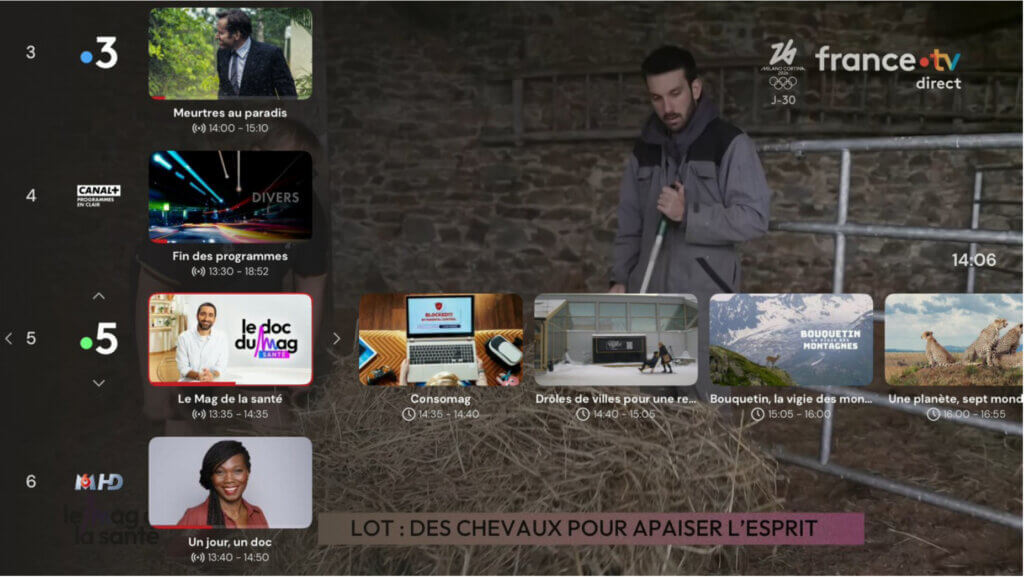
Navigate through the “Mini EPG” using the buttons on the directional pad of your remote control:
- Up button “ ↑ ”,
- Down button “ ↓ ”,
- Left button “ ← ”,
- Right button “ → ”.
To confirm your selection and watch a program currently airing on another channel, or to display the details of an upcoming program, press the “OK” button on the directional pad of your remote control.
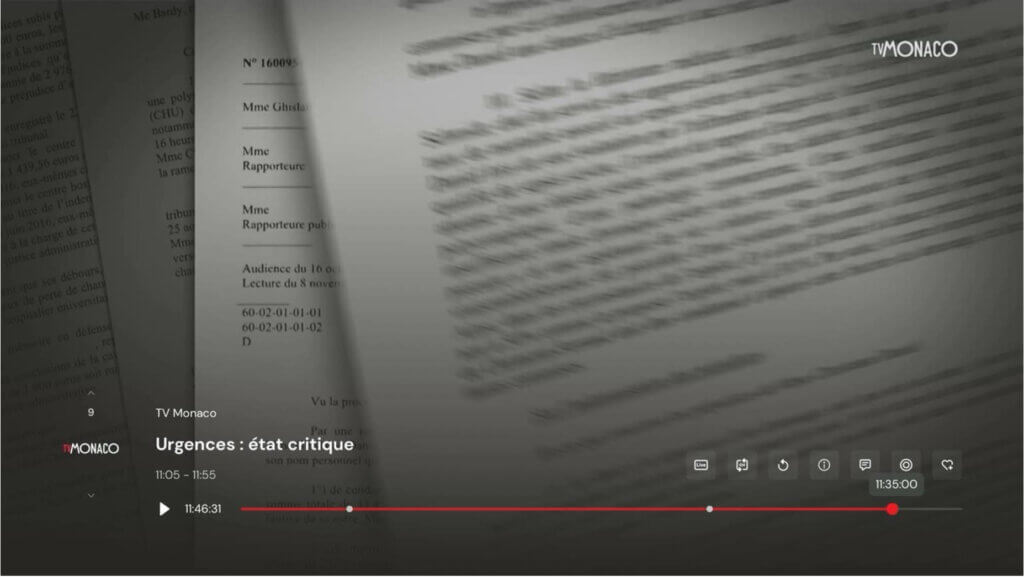
When you press “Select” on the directional pad of the remote control while a program is playing, the control bar appears at the bottom of the screen. From there, you can pause live TV, record the program, change the audio channel, or add subtitles if available.
The progress bar allows you to rewind. White dots indicate the start of a program and allow you to jump back to specific moments in the content.
Note : the availability of live TV control depends on channel rights and may not be available for all channels.
When you switch to another live channel, playback returns to the live broadcast.
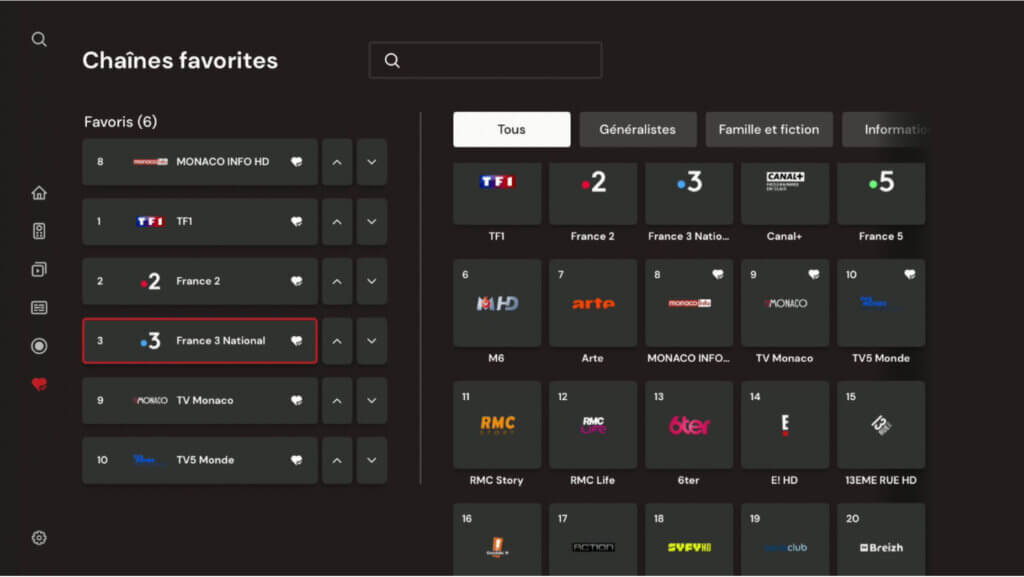
1. Open the menu on the right side of the screen and go to the “Favorites” tab.
2. Select the “Favorite channels” button, which will take you to the corresponding subpage, then go to “Manage favorites”.
3. Select the channel you want to add to your favorites and press the OK button. A heart will appear in the top-right corner of the tile, indicating that the channel has been successfully added to your favorites.
4. The channel you added to your favorites will appear in the list on the left side of the screen.
5. To change the order of your favorite channels, select the arrow next to your favorite channel and press OK.
Note: it is also possible to add a favorite channel while a program is playing (See “ Watch TV ”)
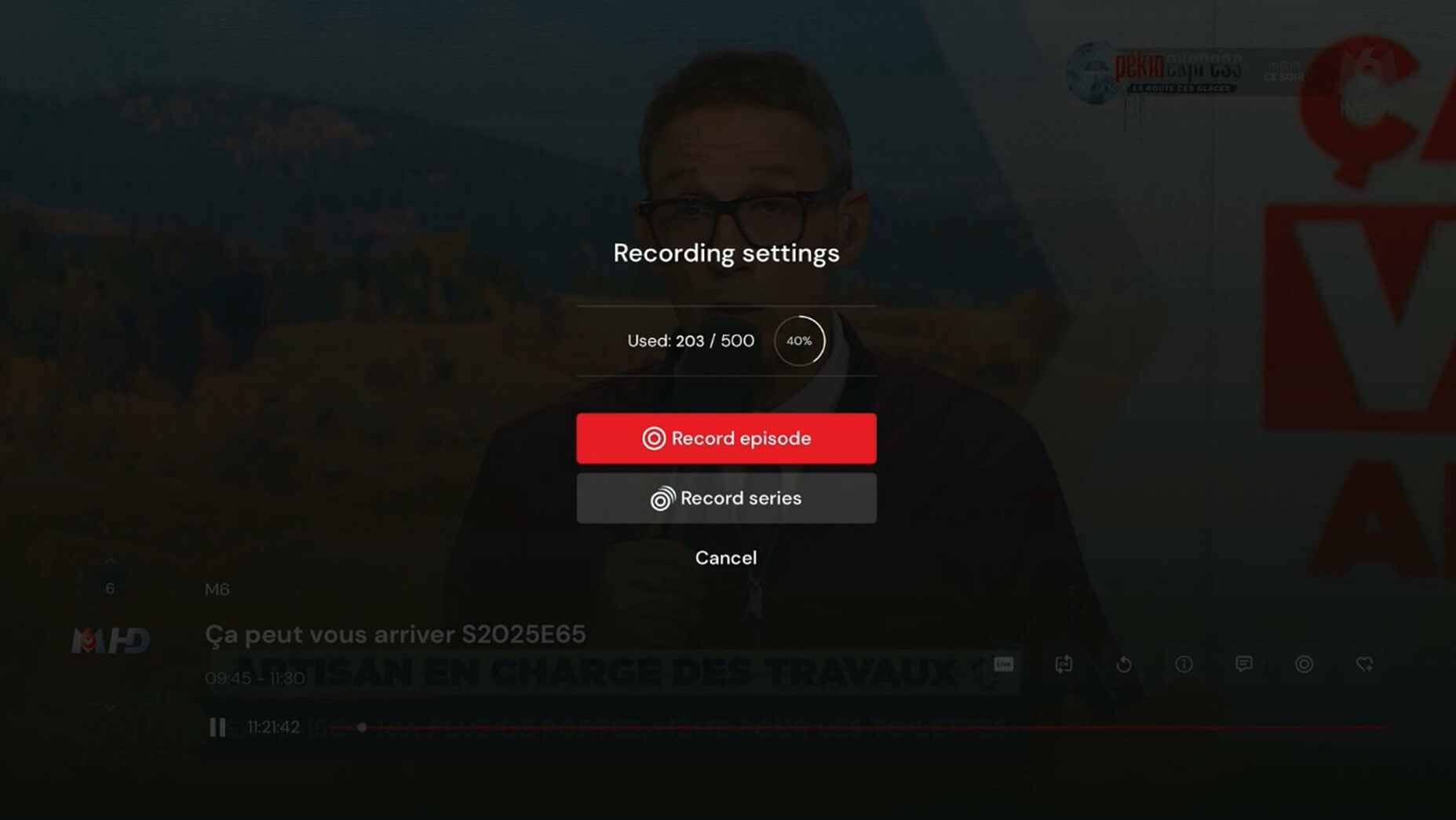
To record a program/movie using the player, while watching the material, bring up the player bar by pressing the center button on the remote. Navigate using the arrow keys to the "6.
Schedule and end a recording for films or series" button and press it. (see "Watch TV")

An overlay will appear with options to choose from and information about the amount of recording space used. You can choose whether to record a single episode ("Record episode") or a series of episodes assigned to a given series ("Record series").
Recording – Icons and meanings
Recording:
Schedule a recording / Record an episode
 Record the series
 Recorded material
Cancel recording:
Once you have recorded an episode or an entire series, click the button:
“Recording settings”  to delete a recorded episode or manage recordings for a given series.
Recorded material settings
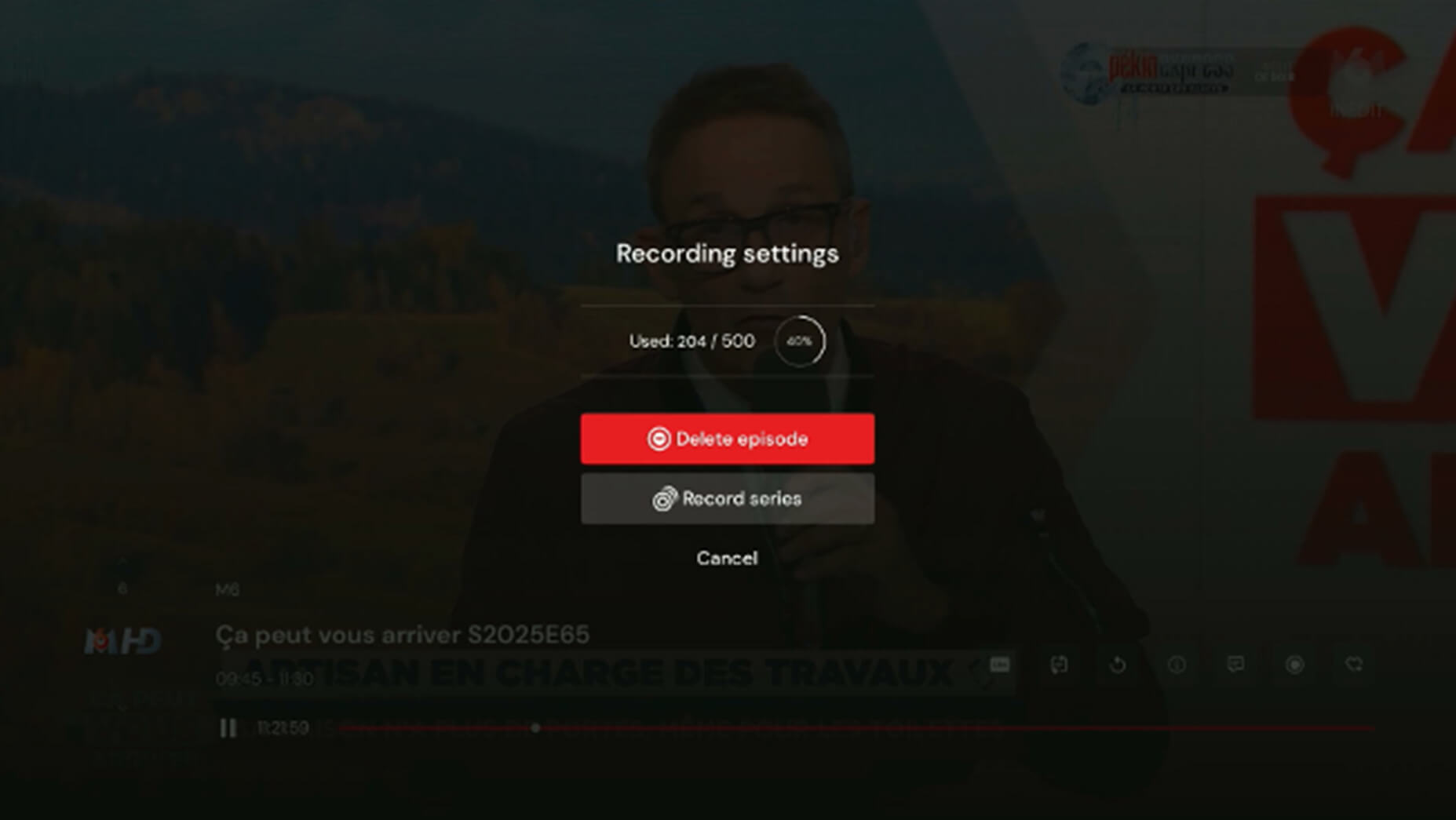
Once you have recorded an episode or an entire series, you can delete the recordings by selecting one of the available options.
Recording – Icons and meanings:
Cancel recording:
Recording settings
 Remove episode
 Cancel series recording
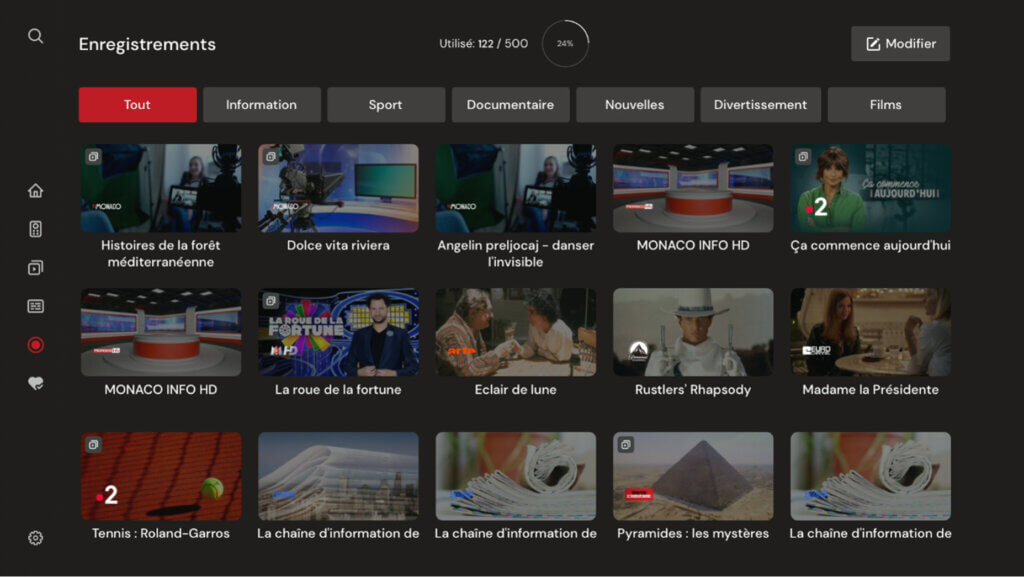
All available and scheduled recordings are displayed on the “Recordings” subpage. You can select a category to quickly filter available recordings by genre, type, or category.
You can also check your available recording space using a graphical indicator (a circle with a counter) that shows how much of the available space is being used.
Click the “Edit” button to select all recordings or individual recordings to delete.
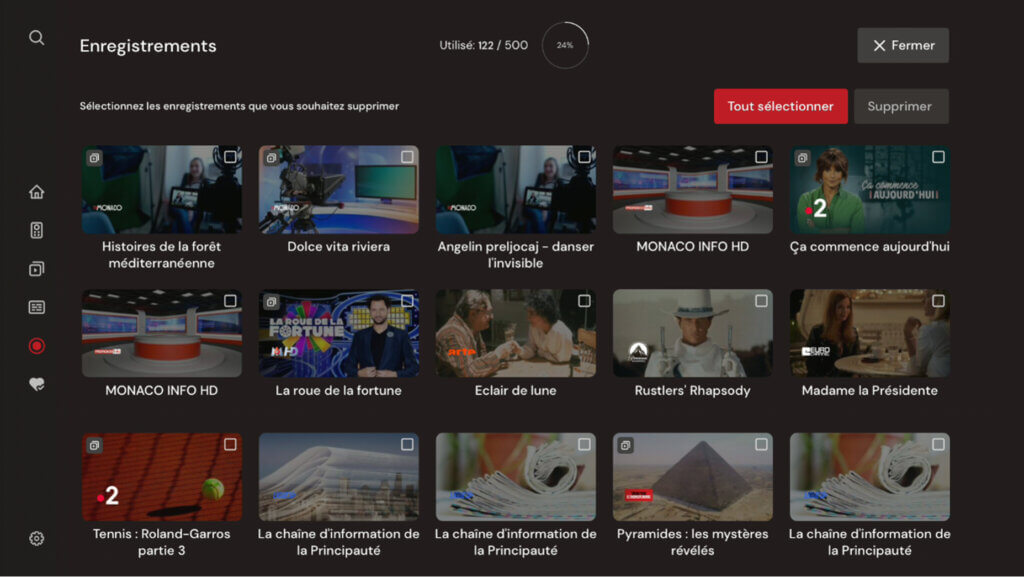
Recording capacity by number of recordings: The circular graphical display indicates how much of the available capacity is being used.
Thanks to the search function in the main menu, you can find programs that have already aired and are available in replay, as well as live, upcoming, and recorded content.
1 - Select the "Search" tab in the menu.
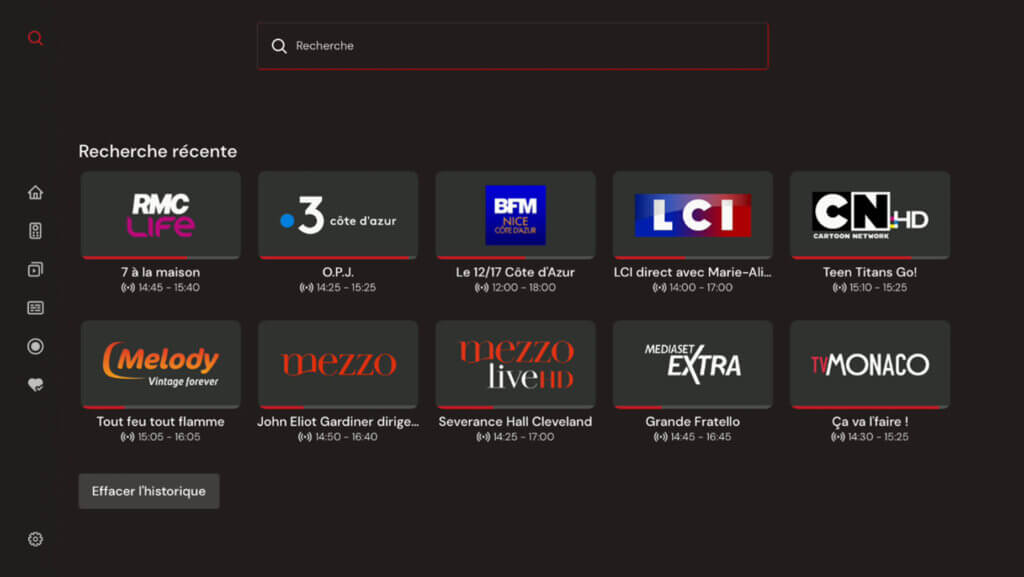
2 - Enter the desired TV program or channel using the on-screen keyboard. Type your query using the virtual keyboard. To confirm your search, click the “Confirm” button at the bottom of the page.
3 - If Siri is enabled, you can also press and hold the “microphone” button on your remote control and say the name of the desired channel or program.
4 - The search results are displayed by channel, by replay TV program, or by upcoming TV program.
5 - Select the desired channel or TV program to start playback.
1. Press and hold the TV/Control Center button and the volume down button at the same time for about five seconds or until the status light on your Apple TV turns off and then back on.
2. Release the buttons. Then wait 5 to 10 seconds for a Connection interrupted notification to appear on your TV.
3. Wait for your remote to restart. When the Connected notification appears, you can use your remote.

Log in to your myMT customer area :

From the reception of your myMT customer area, go to the TV universe by clicking on “more info”

To subscribe to an option, simply click on “Subscribe” among the available options.
To cancel an option, simply click on “Unsubscribe” among the active options.

To finalize your order, all you have to do is validate the order summary.

Simply go to your myMT customer area
From the homepage of your myMT customer area, go to the TV section by clicking on “more info”.
Click on “edit” in the “login password” section to reset your password.
Via this link
Browsers
Mac 10.14 / 10.13
Chrome (from version 70.0)
Safari (from version V - 11.1)
FireFox (from version 63.0)
Windows 10
Chrome (from version 70.0)
FireFox (from version 63.0)
Microsoft Edge (from version 42.17134)
Mobile / Tablet
iPhone / iPad
iOs (from iOs 11)
Android Phone / Tablet
Android (from 7)
Apple TV
Tv Os (12.x - 11.x)
Apple TV 4k (2017, black color, 32 or 64go, model number : A1842)
Apple TV HD (2015, black color, 32 or 64go, model number : A1625)
Windows 10
Chrome (from version 70.0)
FireFox (from version 63.0)
Microsoft Edge (from version 42.17134)
Google Chromecast
Chromcast (version 1 - 2 - 3)
Yes, you can buy an Apple TV off the shelf or rent an Apple TV from one of our stores.
An Apple account is not required to access the MonacoTelecomTV application (if it is an Apple TV provided by Monaco Telecom).
On the other hand, it is essential to download other applications on your Apple TV 4K.
To create an Apple account, go to this page.
Note: An Apple ID is linked to a country: to avoid complications, it is better to use a French Apple ID to use Monaco Telecom services.
Go to Settings > Network > Wi-Fi.
Choose the name of a compatible Wi-Fi network to join.